
 代码收藏家
代码收藏家 Python像素画转换器开发指南
1. 项目介绍
这是一个基于Python开发的像素画转换器,可以将普通图片转换为像素画风格。项目具有以下特点:
2. 技术栈
3. 核心算法实现
3.1 像素化算法
像素化的核心是将图片分割成小块,然后用某种方式计算每个块的颜色。我们实现了三种模式:
- 主色块模式:
def convert_to_pixel_art(self, img: Image.Image) -> Image.Image:
    width, height = img.size
    new_width = max(1, width // self.pixel_size)
    new_height = max(1, height // self.pixel_size)

    # 缩小图片
    img_small = img.resize((new_width, new_height), Image.Resampling.NEAREST)
    # 放大回原尺寸
    img_pixel = img_small.resize((new_width * self.pixel_size, new_height * self.pixel_size),
                                Image.Resampling.NEAREST)
    return img_pixel
- 平均色块模式:
def convert_to_pixel_art(self, img: Image.Image) -> Image.Image:
    img_np = np.array(img)
    result = np.zeros_like(img_np)
    for y in range(0, height, self.pixel_size):
        for x in range(0, width, self.pixel_size):
            block = img_np[y:y+self.pixel_size, x:x+self.pixel_size]
            if block.size == 0:
                continue
            # 计算块的平均颜色
            avg_color = block.mean(axis=(0,1)).astype(int)
            result[y:y+self.pixel_size, x:x+self.pixel_size] = avg_color
    return Image.fromarray(result)
3.2 卡通效果算法
我们实现了多种卡通效果,这里以经典卡通效果为例:
def apply_cartoon_effect(self, img: Image.Image) -> Image.Image:
    # 边缘检测
    edges = img.filter(ImageFilter.FIND_EDGES)
    edges = edges.convert('L')
    edges = ImageOps.invert(edges)

    # 颜色量化
    img_quantized = img.quantize(colors=self.color_count).convert('RGB')

    # 调整边缘
    edges = edges.resize(img.size, Image.Resampling.LANCZOS)
    edges = edges.convert('RGB')
    edges = Image.blend(edges, Image.new('RGB', edges.size, (255, 255, 255)), 0.7)

    # 合并效果
    return Image.blend(img_quantized, edges, 0.3)
4. 性能优化
4.1 图片处理优化
- 限制处理图片的最大尺寸:
max_size = 800
if max(img.size) > max_size:
    ratio = max_size / max(img.size)
    new_size = tuple(int(dim * ratio) for dim in img.size)
    img = img.resize(new_size, Image.Resampling.LANCZOS)
- 使用缓存机制:
def _update_cache(self, key, value):
    if len(self._cache) >= self._cache_size:
        self._cache.pop(next(iter(self._cache)))
    self._cache[key] = value
4.2 批处理优化
- 使用队列管理任务:
self.process_queue = queue.Queue()
for file in files:
    self.process_queue.put(file)
- 多线程处理:
def start_processing(self):
    def process():
        while not self.process_queue.empty() and not self.is_cancelled:
            filepath = self.process_queue.get()
            success = self.process_file(filepath)
            if success:
                self.parent.after(0, lambda: self.update_progress(filepath))

    threading.Thread(target=process, daemon=True).start()
5. 使用说明
5.1 基本操作
-
打开图片:
- 拖拽图片到程序窗口
- 点击选择图片按钮
-
调整参数:
- 像素大小:控制像素块的大小
- 转换模式:选择主色块、平均色块或卡通风格
- 颜色数量:控制颜色数量(2-64)
- 边缘平滑:是否平滑边缘
-
保存结果:
- 点击"保存像素画"按钮
- 选择保存位置和格式
5.2 批量处理
-
启用批量模式:
- 勾选"批量处理模式"
- 选择多个图片文件
-
设置参数:
- 调整转换参数
- 点击"批量保存"
-
查看进度:
- 进度条显示处理进度
- 可以随时取消处理
5.3 预设管理
-
保存预设:
- 调整好参数后点击"保存当前设置"
- 输入预设名称
-
加载预设:
- 点击"加载预设"
- 选择要应用的预设
6. 开发心得
-
图像处理优化:
- 使用PIL的优化方法
- 合理控制图片尺寸
- 使用缓存减少重复计算
-
界面设计:
- 使用ttk主题提供现代外观
- 添加实时预览功能
- 提供直观的参数调节
-
性能考虑:
- 使用多线程处理耗时操作
- 优化内存使用
- 提供批量处理功能
7. 参考资料
8. 未来改进
-
功能扩展:
- 添加更多卡通效果
- 支持更多图片格式
- 添加图片编辑功能
-
性能优化:
- 使用GPU加速
- 优化内存使用
- 提高处理速度
-
界面优化:
- 添加更多自定义选项
- 优化用户体验
- 支持主题切换
9. 打包发布
9.1 打包工具选择
使用 PyInstaller 进行打包,因为它具有以下优点:
9.2 打包步骤
- 安装 PyInstaller:
pip install pyinstaller
- 创建打包配置文件
pixel_art.spec:
# -*- mode: python ; coding: utf-8 -*-

block_cipher = None

a = Analysis(
    ['pixel_art_converter.py'],
    pathex=[],
    binaries=[],
    datas=[('tkdnd2.8', 'tkdnd2.8')],  # 包含拖放功能所需的文件
    hiddenimports=[],
    hookspath=[],
    hooksconfig={},
    runtime_hooks=[],
    excludes=[],
    win_no_prefer_redirects=False,
    win_private_assemblies=False,
    cipher=block_cipher,
    noarchive=False,
)

pyz = PYZ(a.pure, a.zipped_data, cipher=block_cipher)

exe = EXE(
    pyz,
    a.scripts,
    a.binaries,
    a.zipfiles,
    a.datas,
    [],
    name='像素画转换器',
    debug=False,
    bootloader_ignore_signals=False,
    strip=False,
    upx=True,
    upx_exclude=[],
    runtime_tmpdir=None,
    console=False,
    disable_windowed_traceback=False,
    target_arch=None,
    codesign_identity=None,
    entitlements_file=None,
    icon='icon.ico'  # 程序图标
)
- 执行打包命令:
pyinstaller pixel_art.spec
9.3 常见问题及解决方案
-
拖放功能失效
-
问题:打包后无法拖放文件
-
原因:tkdnd2.8 文件未正确打包
-
解决:
# 在代码中添加自动设置 tkdnd 路径 if hasattr(sys, '_MEIPASS'): tkdnd_path = os.path.join(sys._MEIPASS, 'tkdnd2.8') else: tkdnd_path = os.path.join(os.path.dirname(__file__), 'tkdnd2.8') os.environ['TKDND_LIBRARY'] = tkdnd_path -
图片处理库缺失
-
问题:打包后无法处理图片
-
原因:PIL 相关依赖未完全打包
-
解决:
# 在 spec 文件中添加隐藏导入 hiddenimports=['PIL._tkinter_finder'], -
文件路径问题
-
问题:无法找到预设文件
-
原因:打包后路径发生变化
-
解决:
# 使用相对路径 if hasattr(sys, '_MEIPASS'): base_path = sys._MEIPASS else: base_path = os.path.dirname(__file__) preset_path = os.path.join(base_path, 'presets.json') -
内存占用过大
-
问题:程序运行内存占用高
-
原因:图片处理缓存未及时清理
-
解决:
# 限制缓存大小 self._cache_size = 10 def _update_cache(self, key, value): if len(self._cache) >= self._cache_size: self._cache.pop(next(iter(self._cache))) self._cache[key] = value -
打包体积过大
-
问题:生成的可执行文件体积大
-
原因:包含了不必要的依赖
-
解决:
# 在 spec 文件中排除不需要的模块
excludes=['matplotlib', 'scipy', 'pandas'],
6.打包运行总是出错,我没有打包,解决方法:用脚本批处理
  @echo off
  cd /d %~dp0
  call .venv\Scripts\activate
  python pixel_art_converter.py
  pause
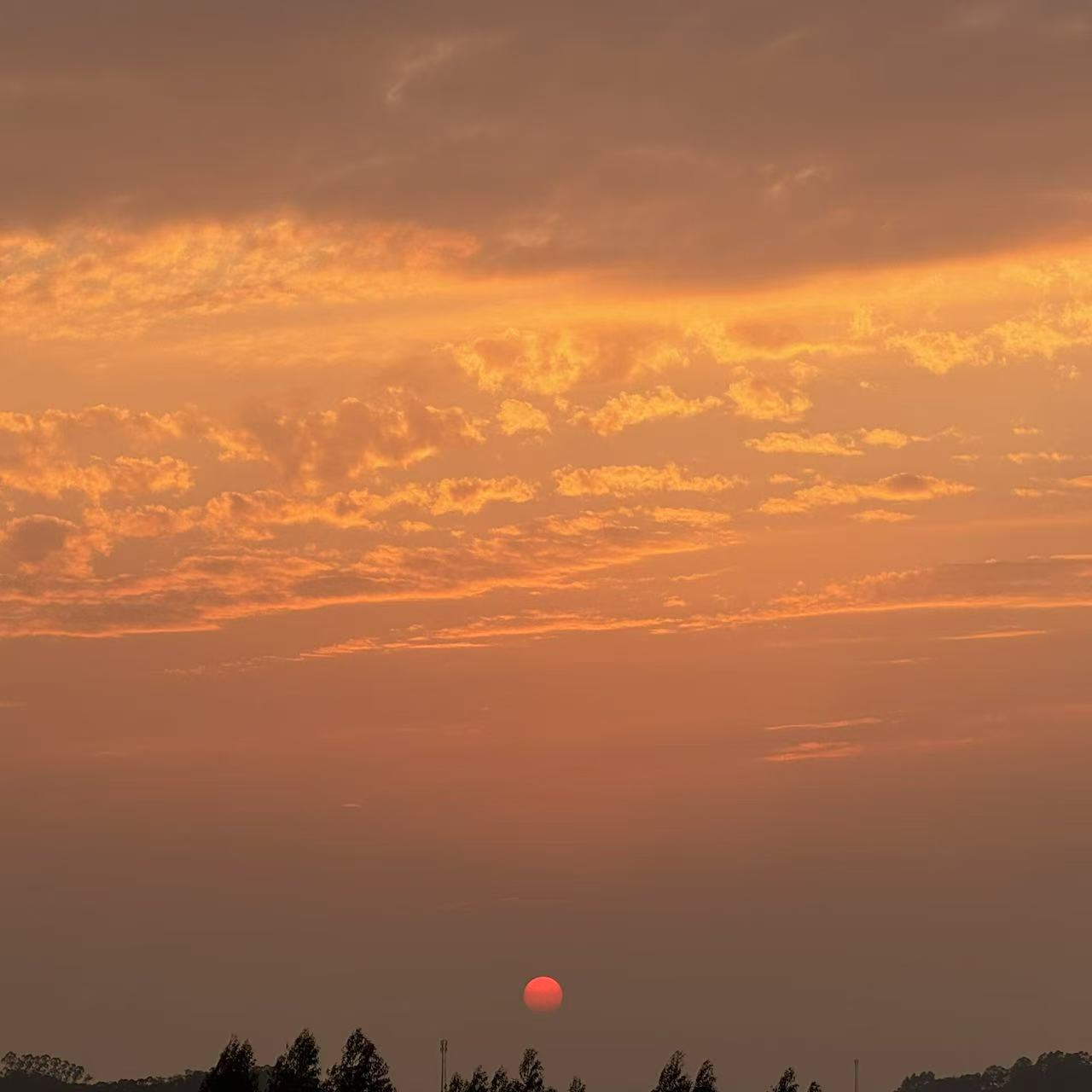
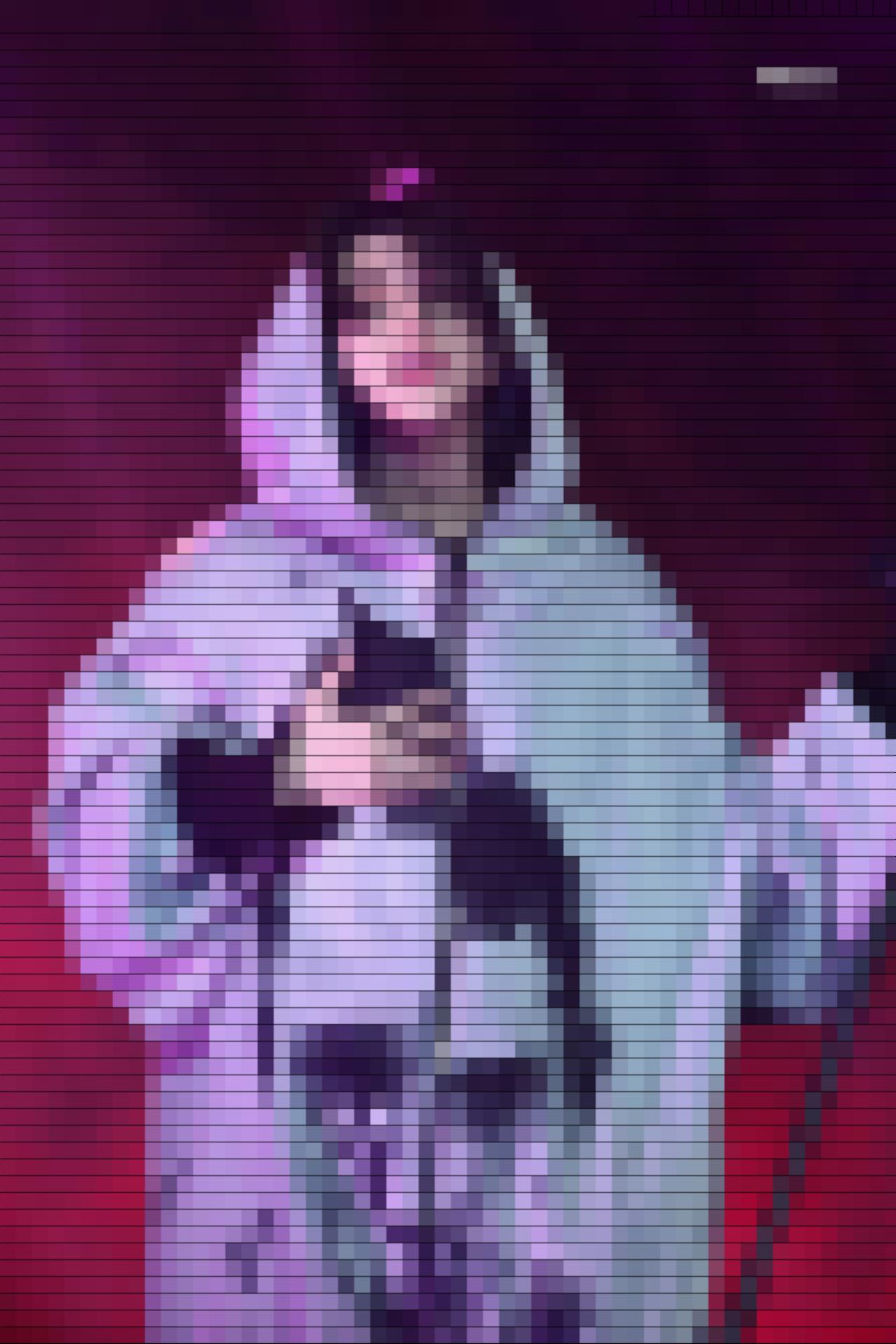
9.最终成果



作者:喝完这杯奶茶我这离开了


